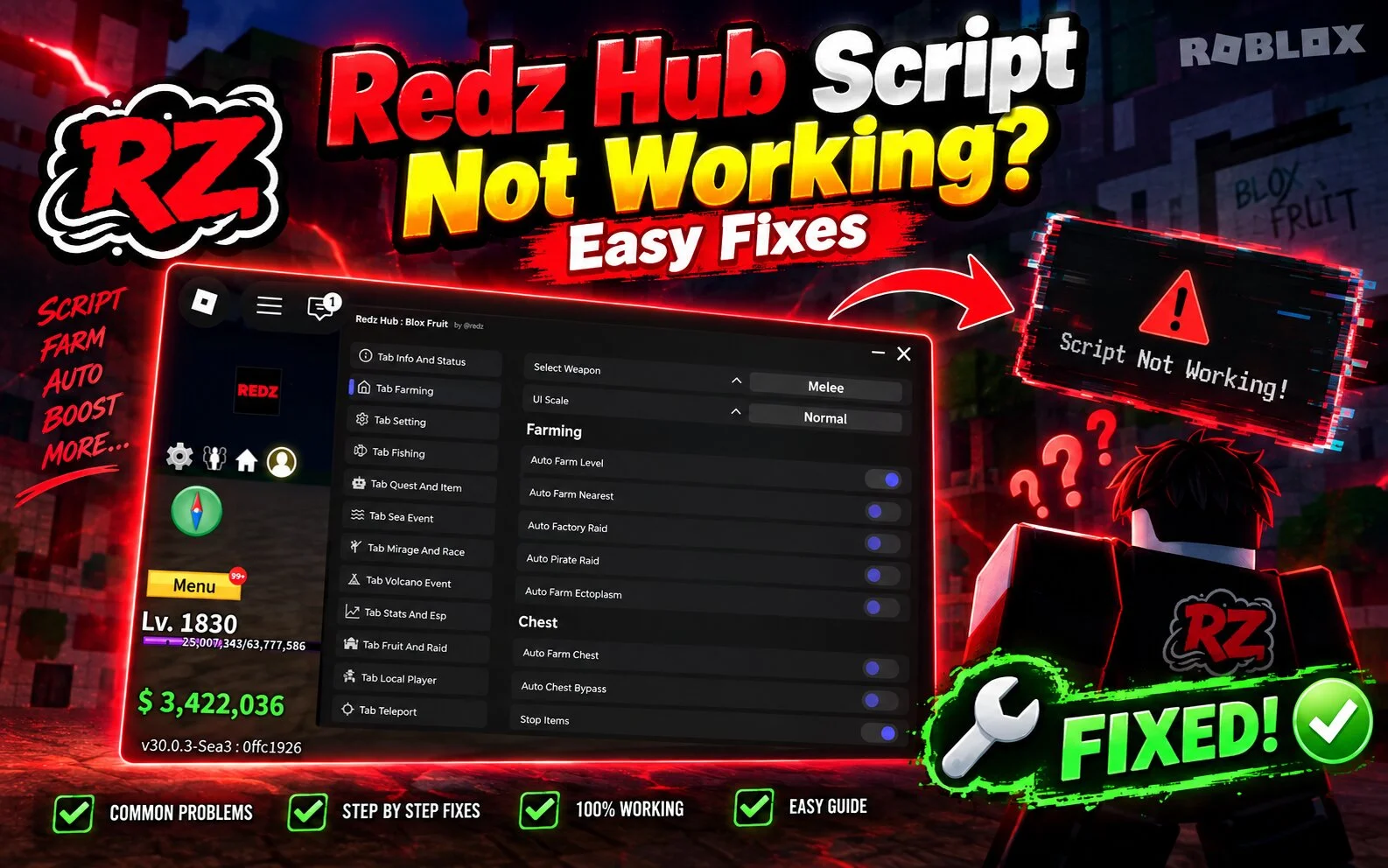
Is Redz Hub Script not working correctly? You are not alone. Scripts can stop working for several reasons, especially after Roblox or Blox Fruits receives an update.
The good news is that many common problems are caused by simple compatibility or setup issues.
Here are some things you can check before assuming the script itself is broken.
1. Check for a Recent Roblox or Blox Fruits Update
The first thing to check is whether Roblox or Blox Fruits was recently updated.
Game updates can change internal systems that community scripts depend on. When this happens, an older version may stop working until it is updated.
If the problem started immediately after an update, compatibility is a likely cause.
2. Make Sure You Are Using the Latest Version
An outdated Redz Hub version may not work properly with the current game version.
Check the source where you normally get information about Redz Hub and look for a newer release.
Avoid downloading files from unknown websites simply because they claim to have the “latest version.”
3. Restart Roblox
Sometimes the problem is temporary.
Completely close Roblox and start it again. If necessary, restart your device as well.
This can clear temporary problems that occurred during the previous session.
Also Read: Redz Hub Script for Mobile
4. Check Your Internet Connection
A slow or unstable connection can cause loading problems.
Try opening another website or online game to see whether your internet connection is working normally.
If other online services are also having problems, the issue may not be related to Redz Hub.
5. Check Your Execution Environment
Different scripts may have different compatibility requirements.
If the script is not loading, check whether your current environment supports the version you are trying to use.
Also make sure you are not using an old or modified version that could interfere with normal operation.
6. Don’t Run Multiple Scripts at Once
Running several scripts or tools together can sometimes cause conflicts.
For troubleshooting, close unnecessary tools and test the script by itself. This makes it easier to identify where the problem is coming from.
7. Check for Missing Features
Sometimes the script itself loads, but a particular feature does not work.
This does not necessarily mean the entire script is broken. A specific feature may have become incompatible after a game update.
Try another available feature and check whether the problem affects everything or only one option.
8. Avoid Random Downloads
Be careful with websites offering “fixed,” “modded,” or “updated” versions.
Unknown downloads can contain unwanted software or misleading files. Downloading only from a source you trust is much safer.
Also Read: Redz Hub vs Other Blox Fruits Scripts
9. Wait After Major Game Updates
Sometimes there is nothing you can fix yourself.
If Blox Fruits has just received a major update, the script may need time to catch up. Repeatedly reinstalling different versions may not solve the problem.
Waiting for a legitimate compatibility update can be the better option.
Quick Troubleshooting Checklist
Before giving up, check these:
- ✓ Roblox is working normally.
- ✓ Blox Fruits is updated.
- ✓ You are using the current Redz Hub version.
- ✓ Your internet connection is stable.
- ✓ You restarted Roblox.
- ✓ You removed conflicting tools or scripts.
- ✓ You checked whether only one feature is affected.
- ✓ You downloaded the software from a trustworthy source.
Conclusion
When Redz Hub is not working, don’t immediately assume that the script is permanently broken. Roblox updates, game changes, outdated versions, compatibility issues, and temporary problems can all cause similar symptoms.
Start with the simple checks above. If the problem started after a major Blox Fruits update, you may simply need to wait for a compatible update.